
Contract Deployment and Settings
Guide on deploying and setting up FT and RAMP contracts, including network selection, token information, and project settings.
FT Contract Deployment
Contract Deployment Settings
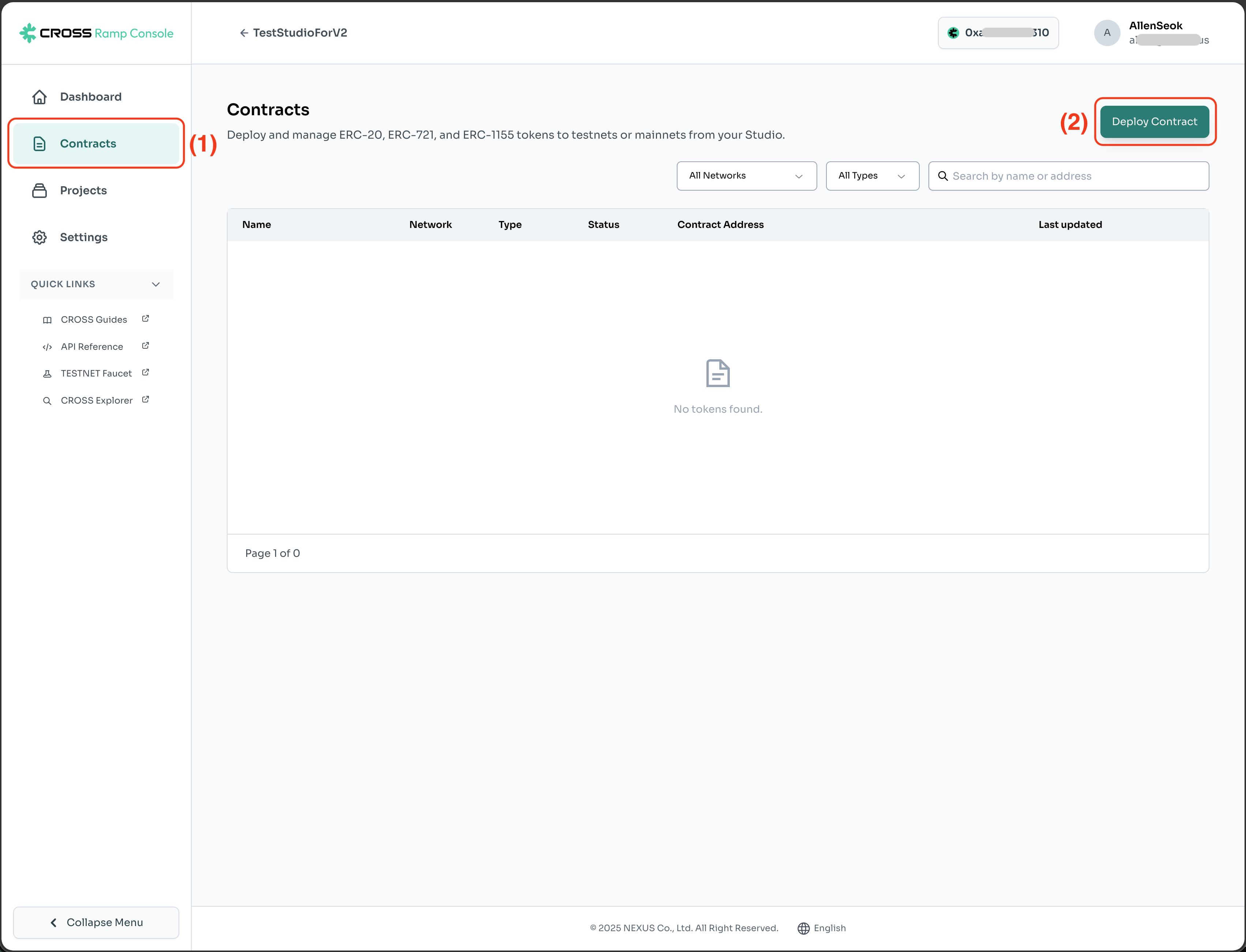
To deploy a contract, **wallet connection** is required.
| No. | Description |
|---|---|
| (1) | Select the Contracts menu. |
| (2) | Click the Deploy Contract button. |
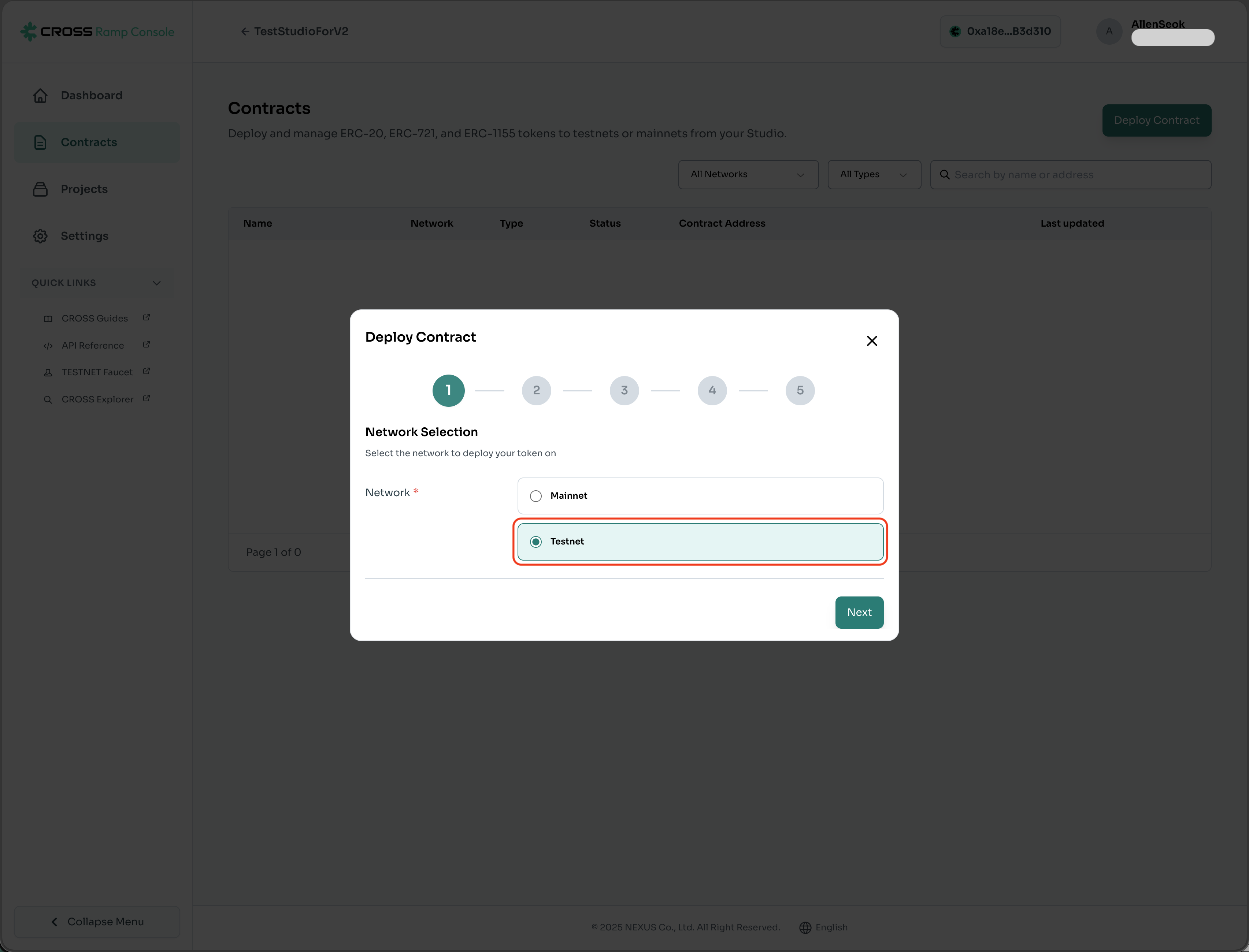
Select Network for Deployment
Select the network to deploy the contract. Choose 'Testnet' for development and 'Mainnet' for production.
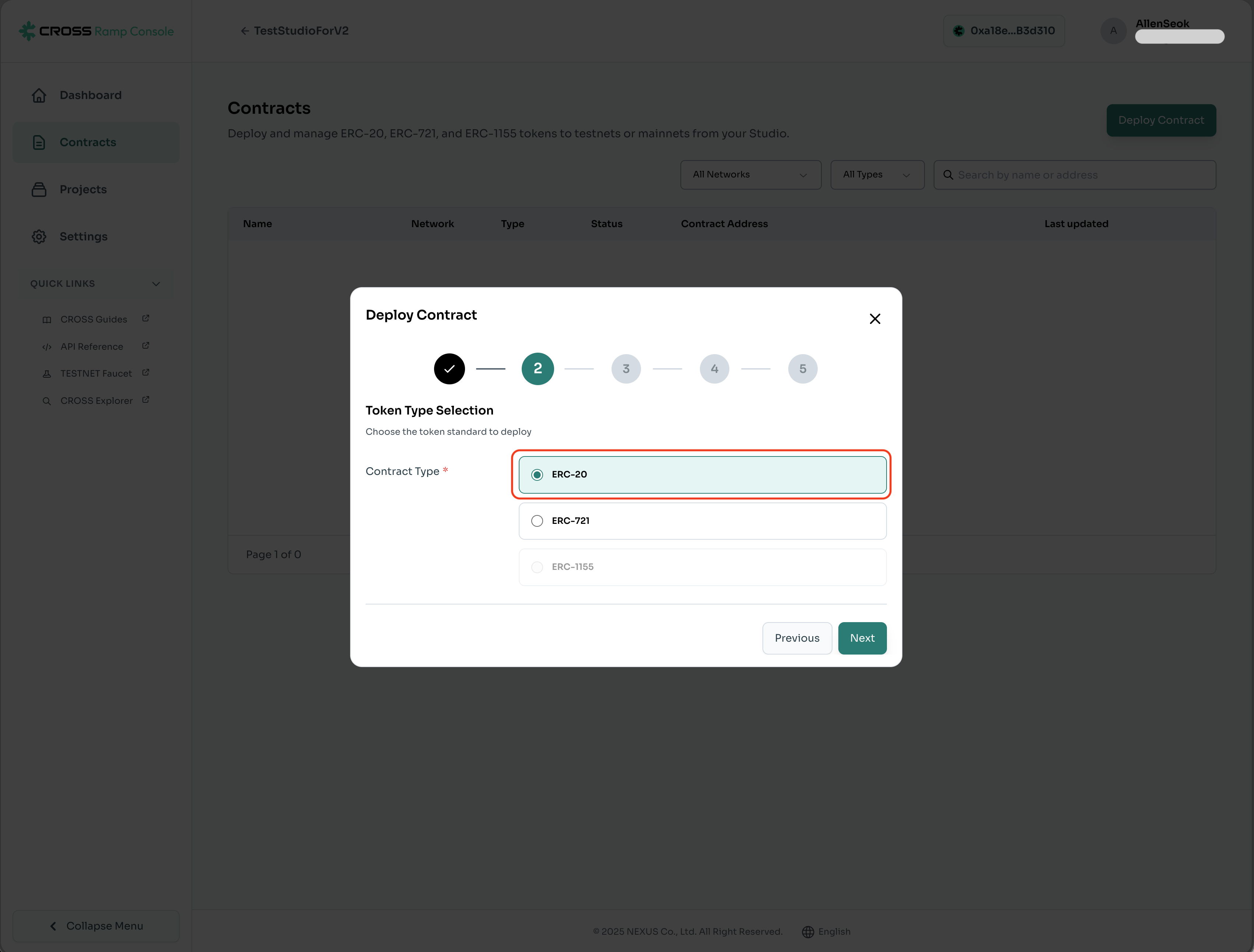
Select Contract Type for Deployment
Select the type of contract to deploy.
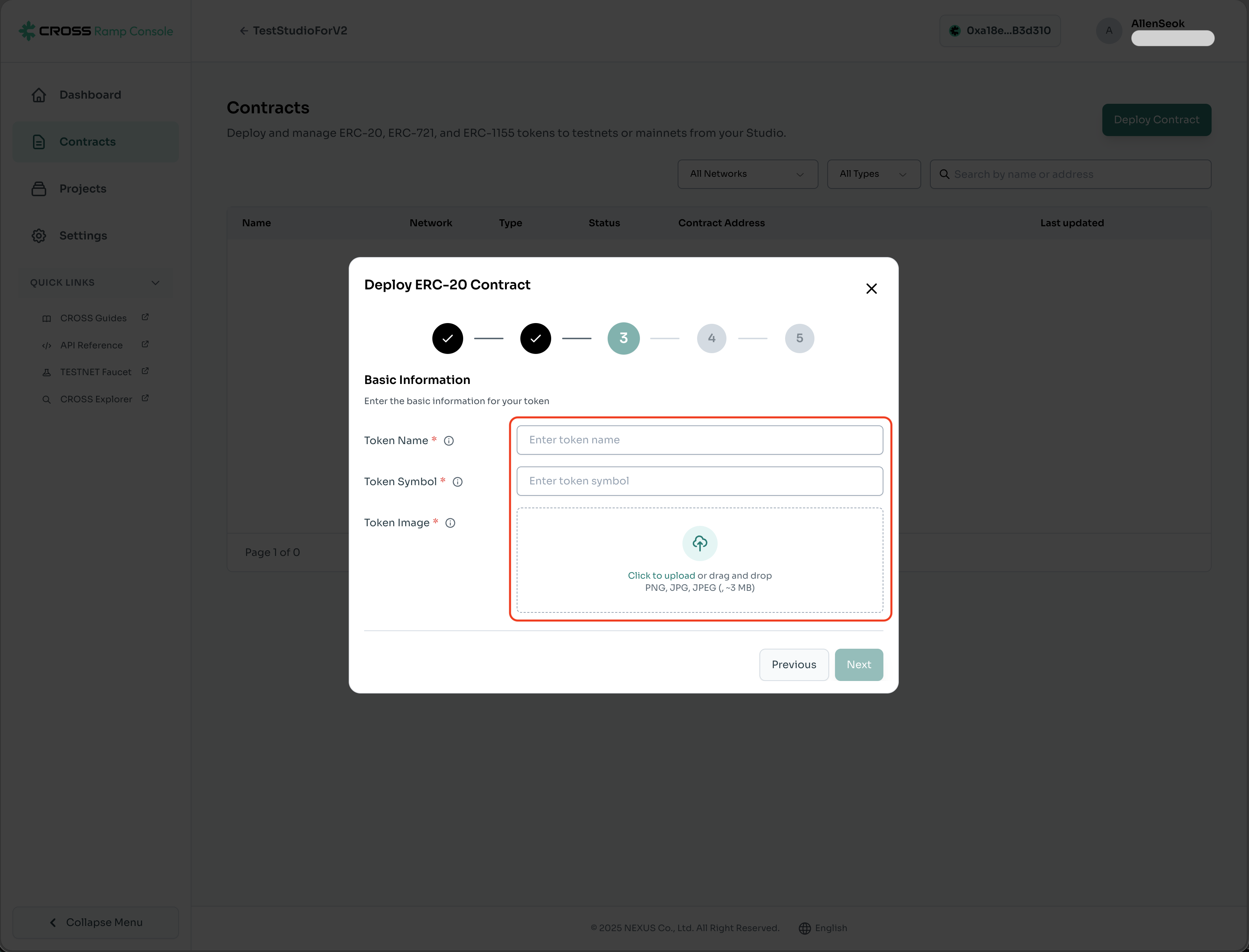
Enter Token Information for Deployment
Register the name, symbol, and icon of the token to be deployed.
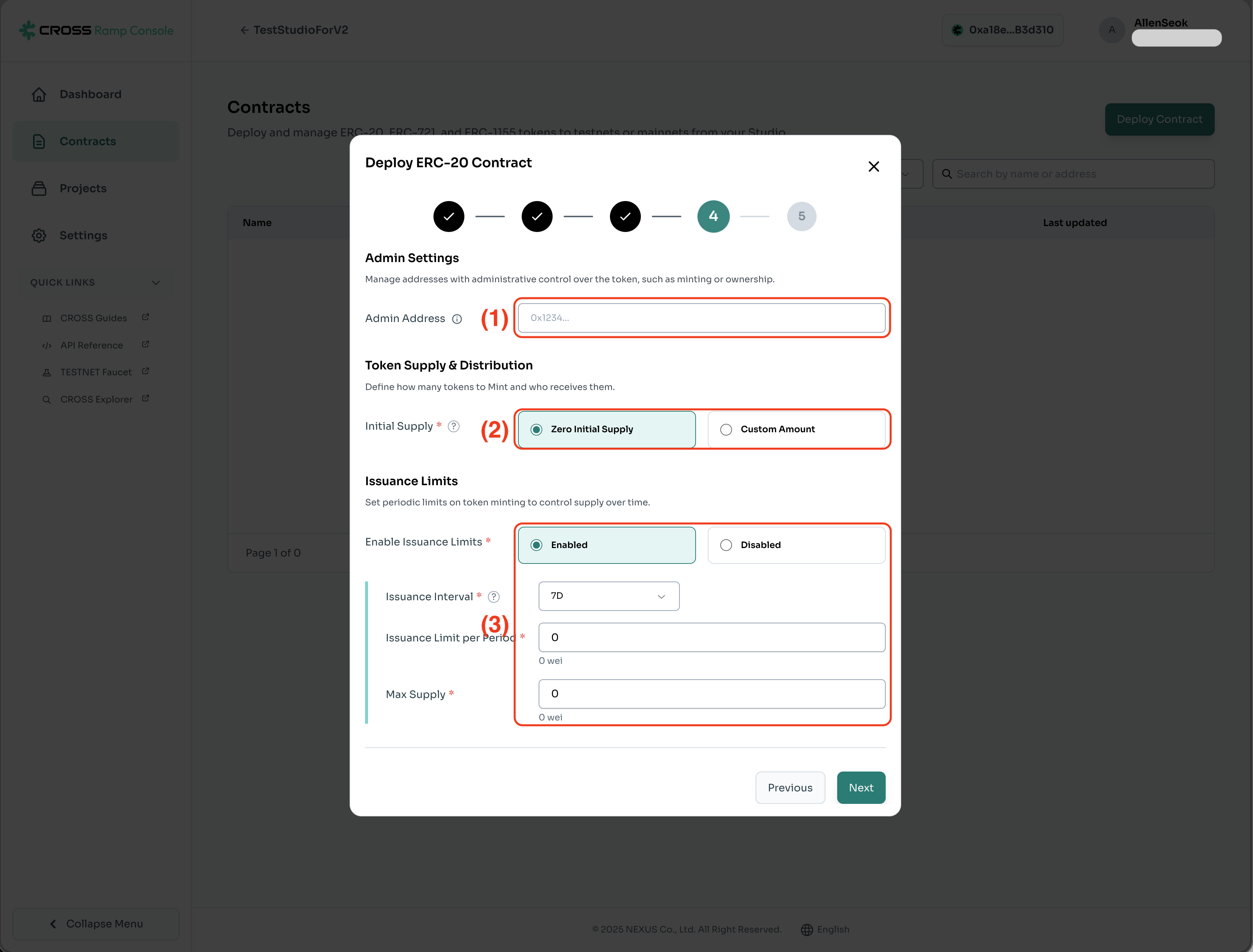
Token Issuance Settings
No. | Description |
|---|---|
(1) | This is the Admin wallet address managed by the company. |
(2) | Token issuance settings.
|
(3) | Daily token issuance limit settings. Reset based on UTC-0.
|
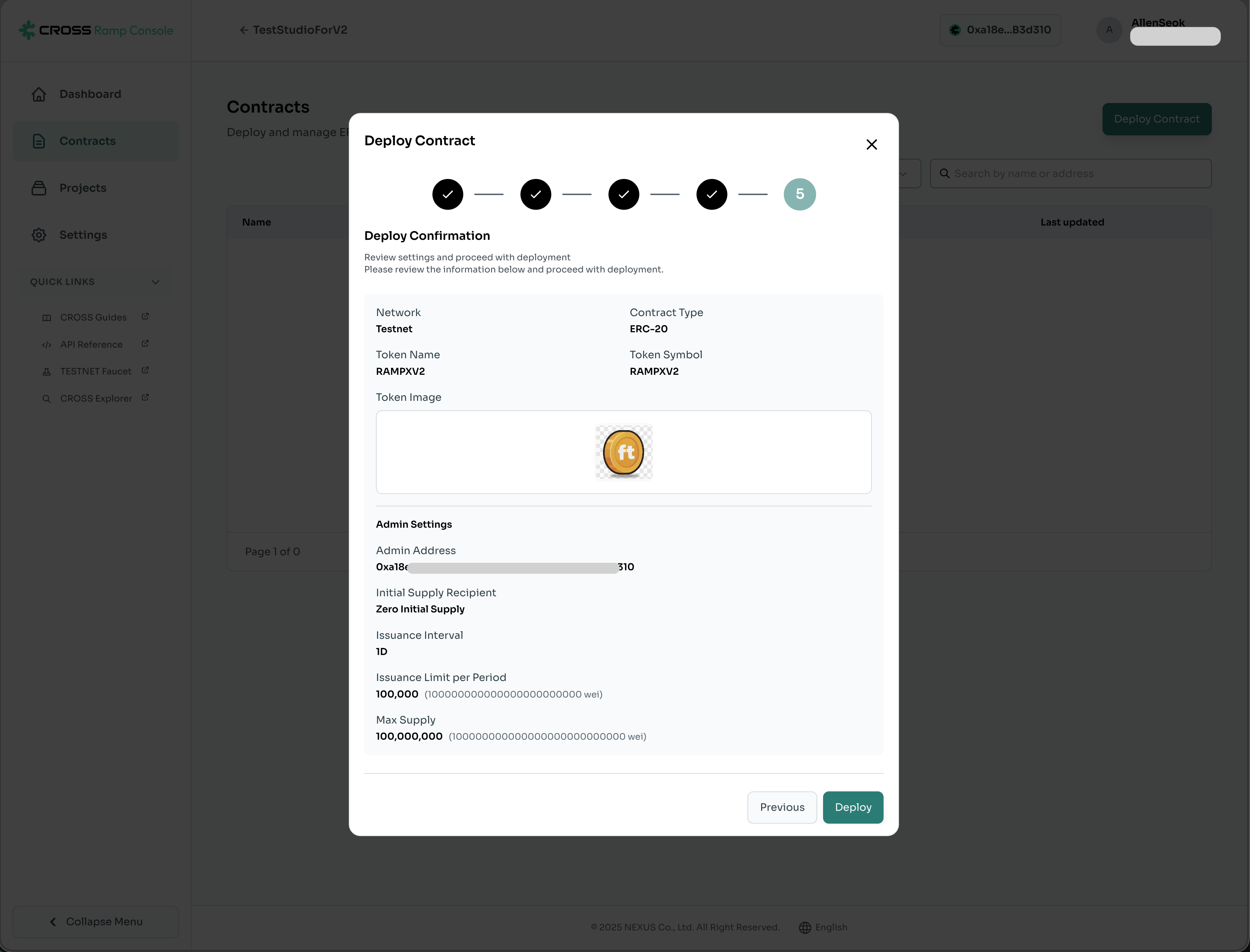
Confirm Token Information for Deployment
Modifications are not possible after deployment.
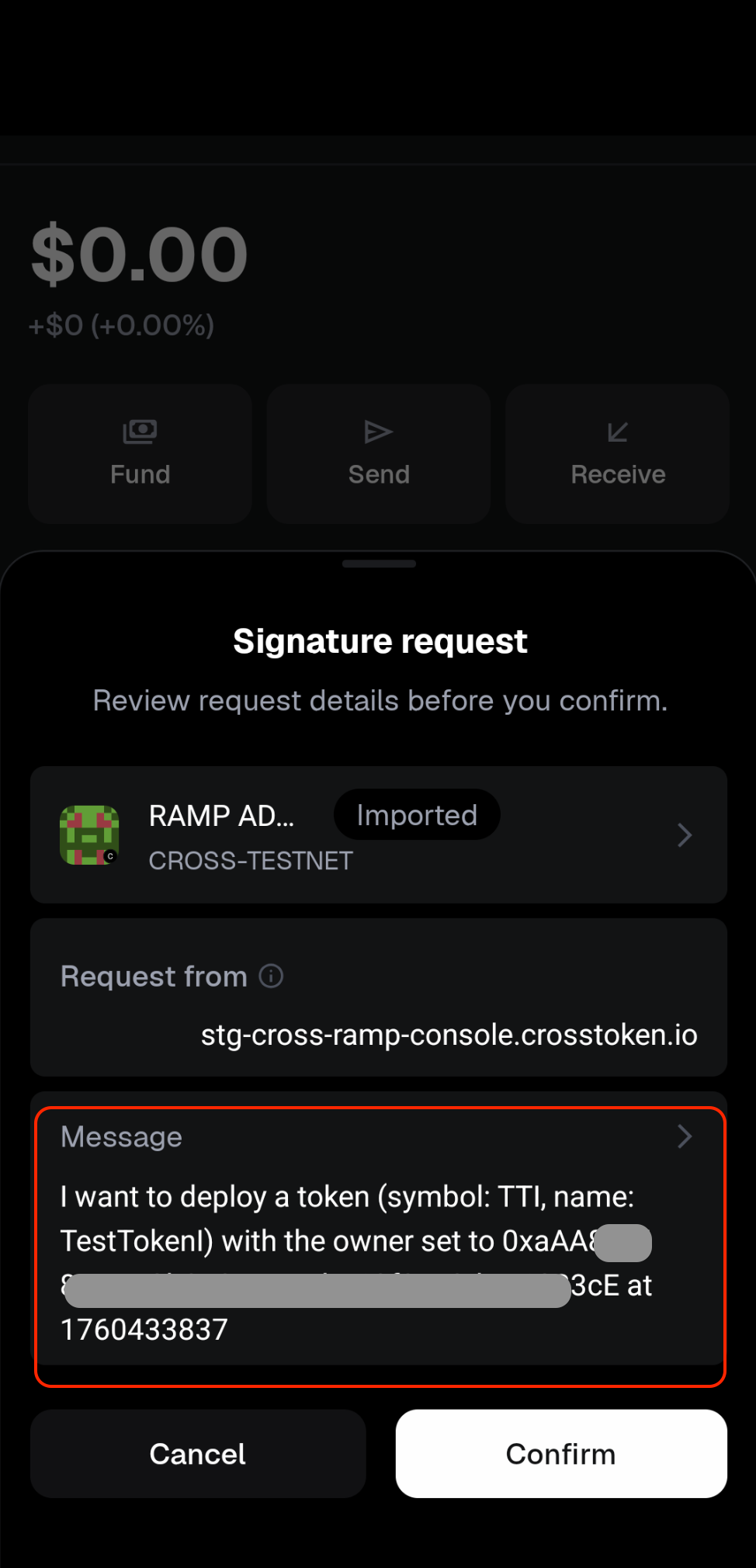
Sign in Wallet
After clicking the Deploy button, you must sign in the wallet connected to the project.
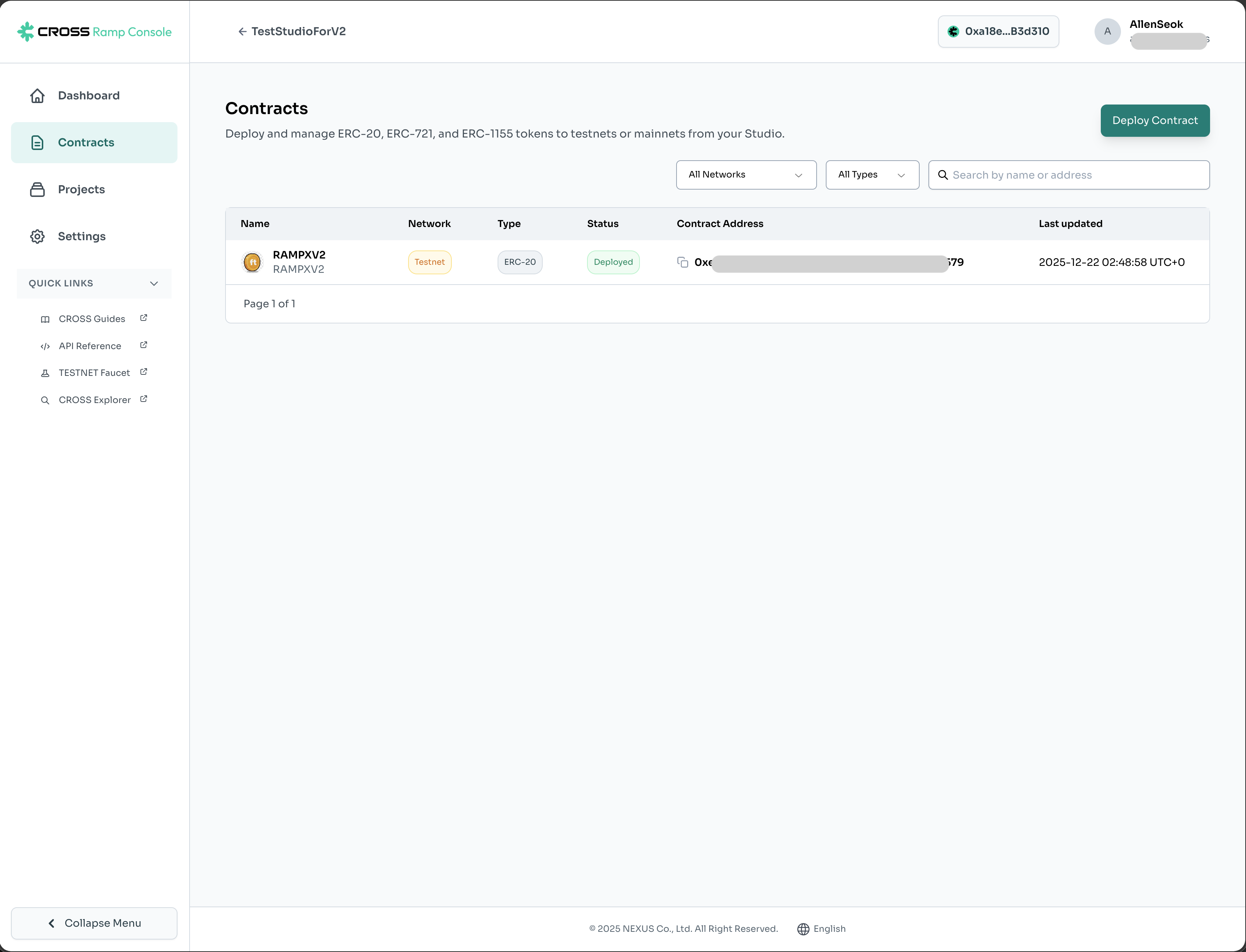
FT Contract Deployment Complete
RAMP Contract Deployment
Deployment of the RAMP Contract, which handles the internal logic of token minting/burning, is required.
To deploy a contract, **[wallet connection](https://daum.net)** is required.
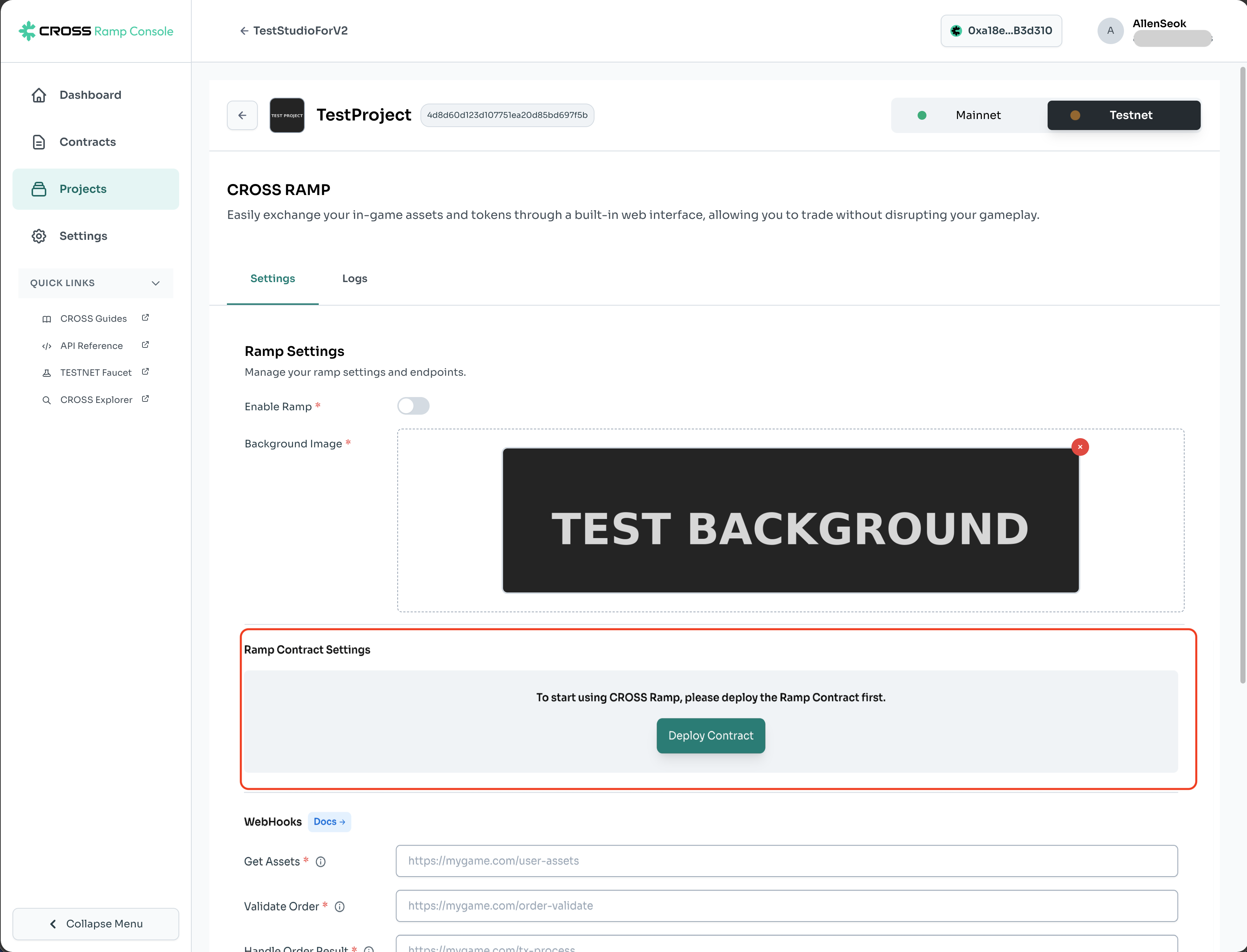
Register Addresses Required for RAMP Contract Deployment
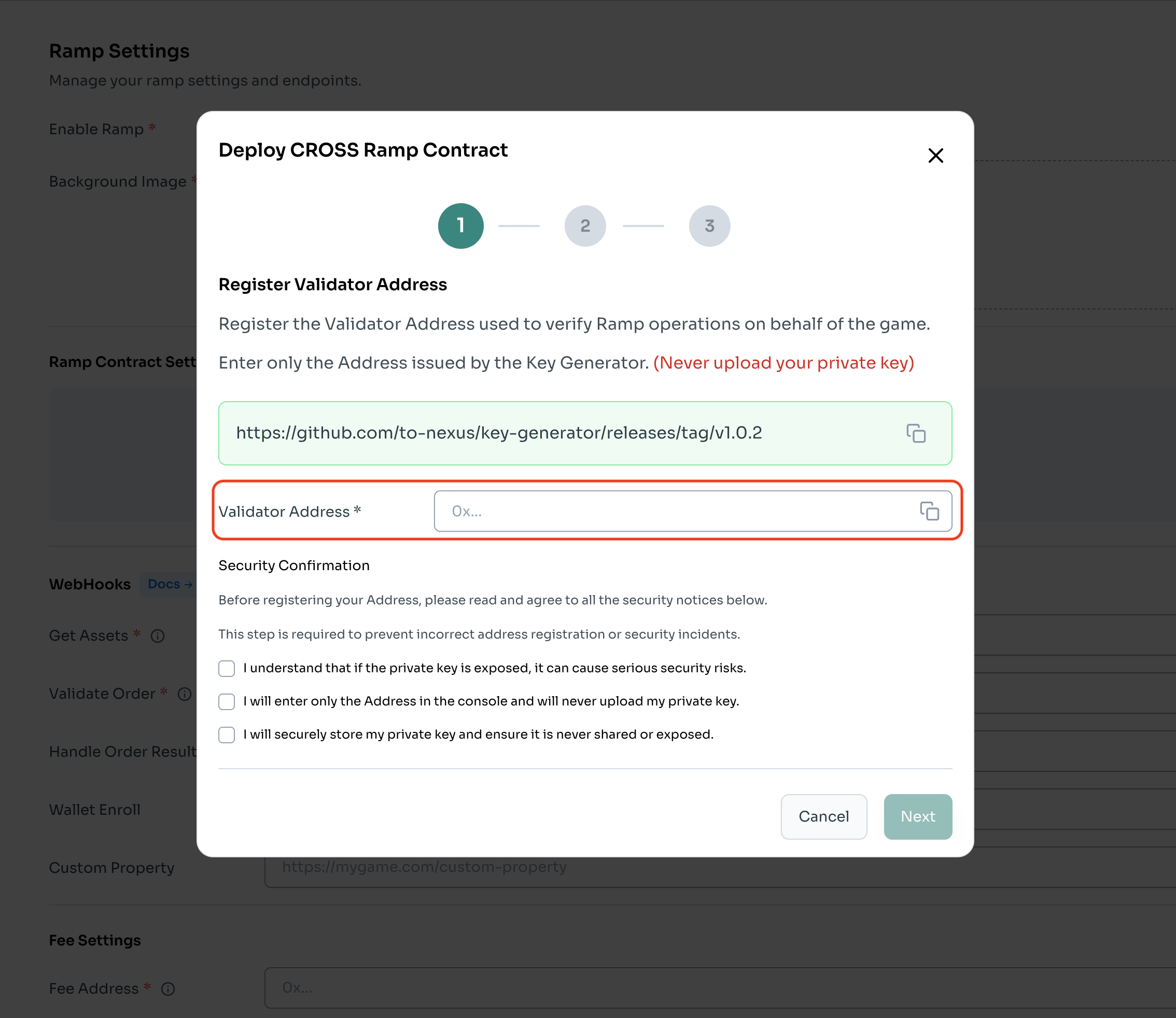
To deploy a contract, **[wallet connection](https://daum.net)** is required.<br /> Registration of the address of the private key generated by the tool provided by NEXUS is required.
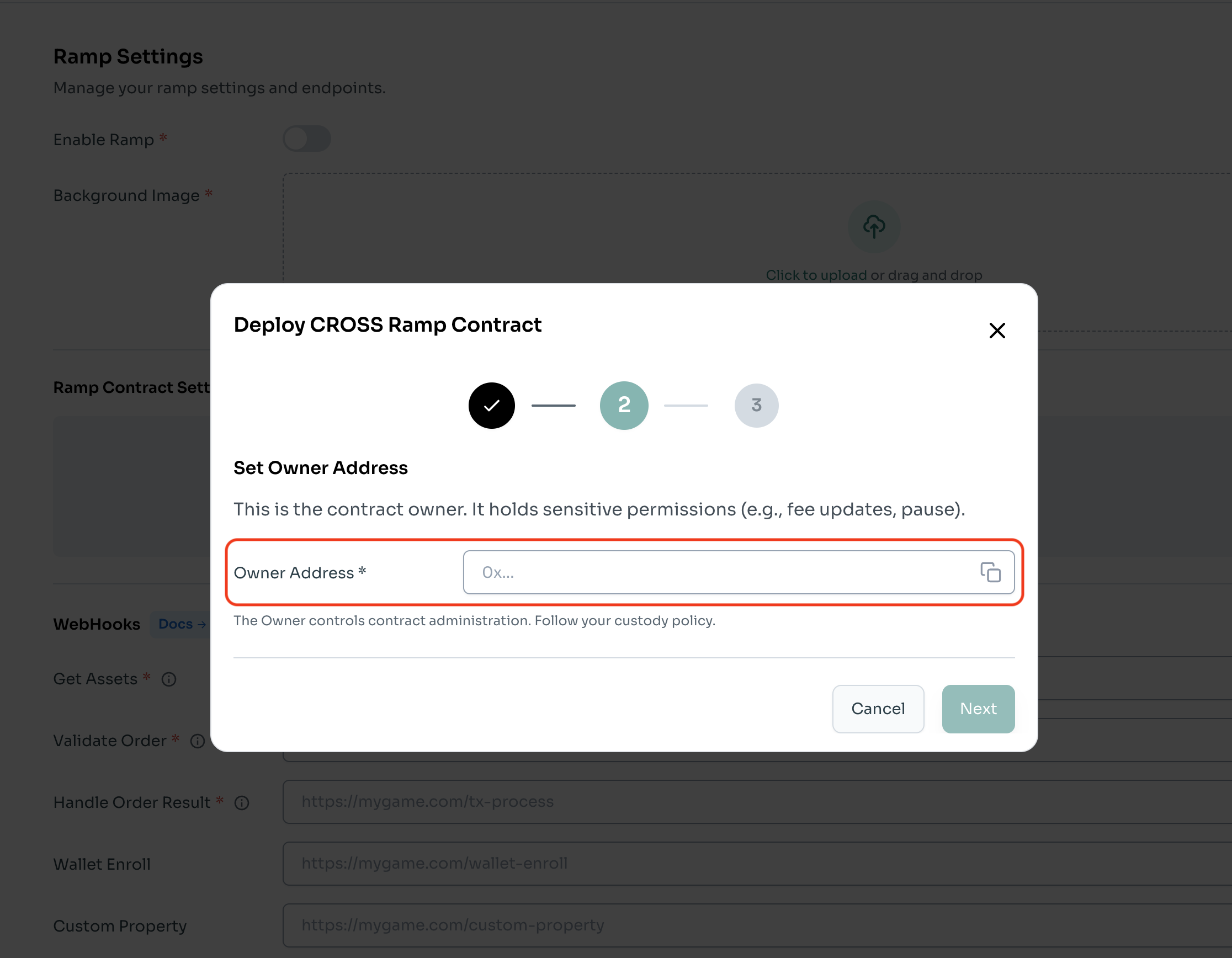
Register Admin Wallet Address
Input of the wallet address required for deployment is necessary.
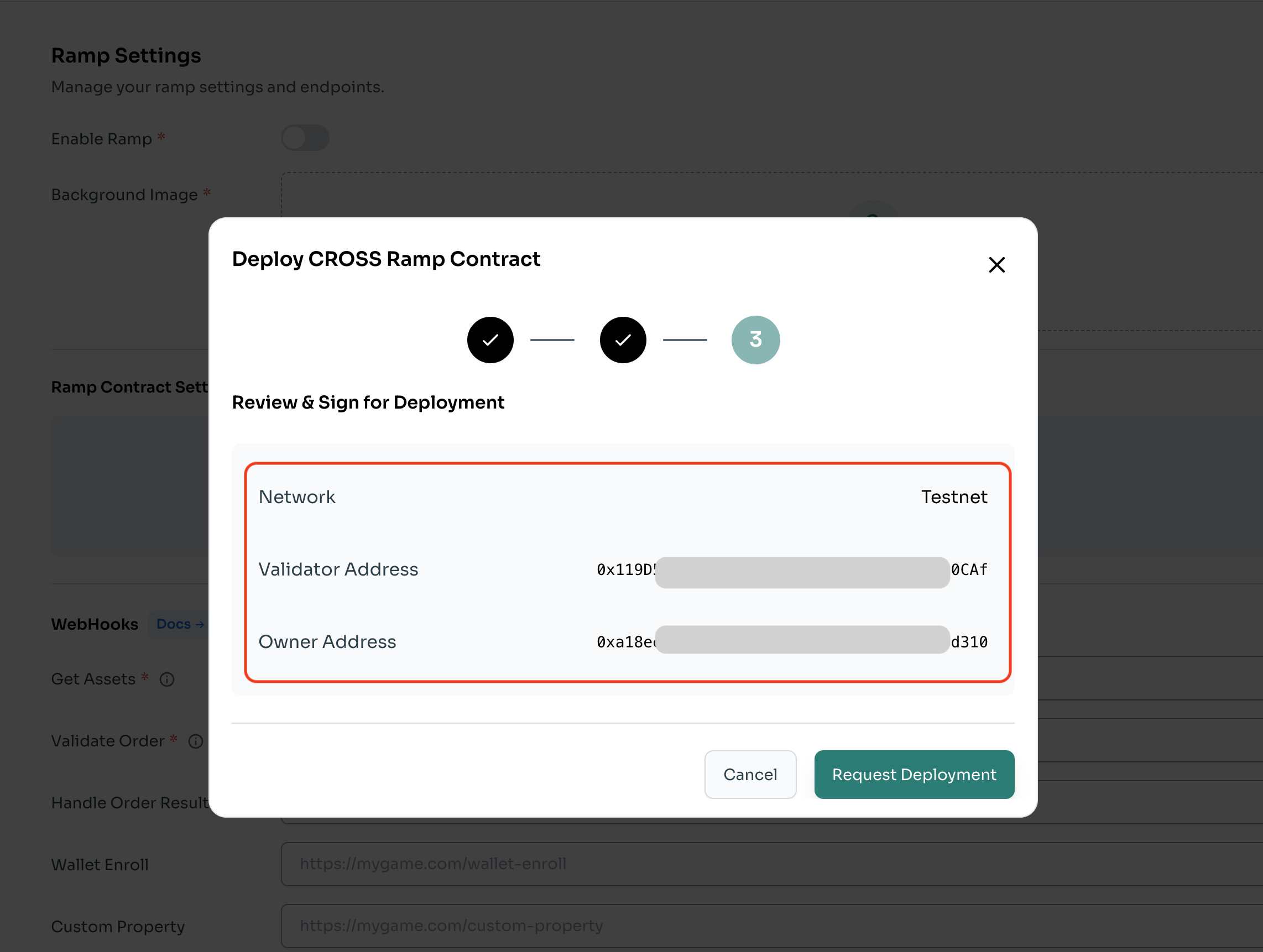
Pre-Deployment Check for RAMP Contract
Check the network, validator address, and admin wallet address for deployment.
RAMP Contract Deployment Completion Screen
Once signed with the admin wallet, the RAMP Contract is deployed and the HMAC key is generated.
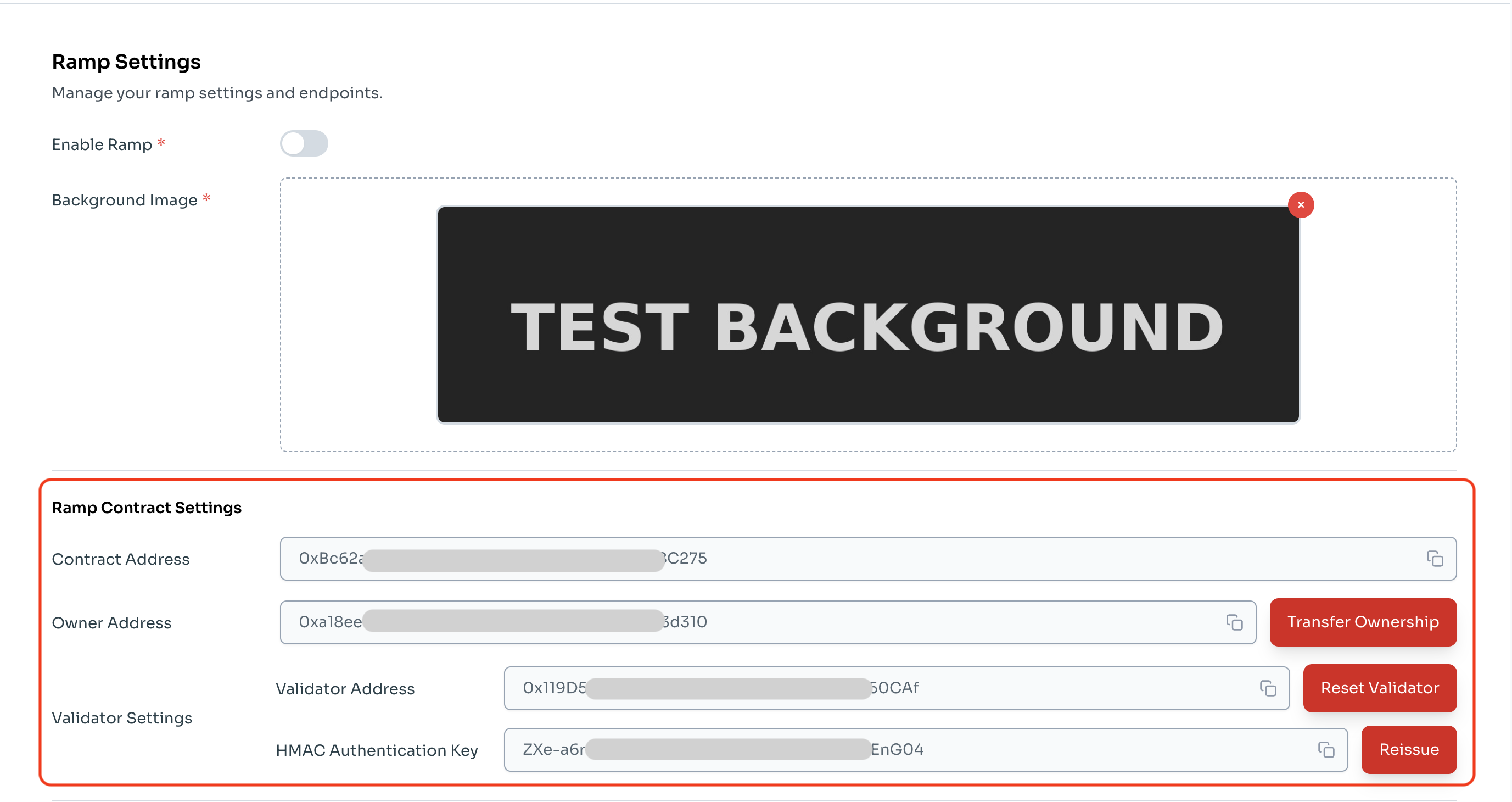
Project Settings
Linking Token Contract and RAMP Contract
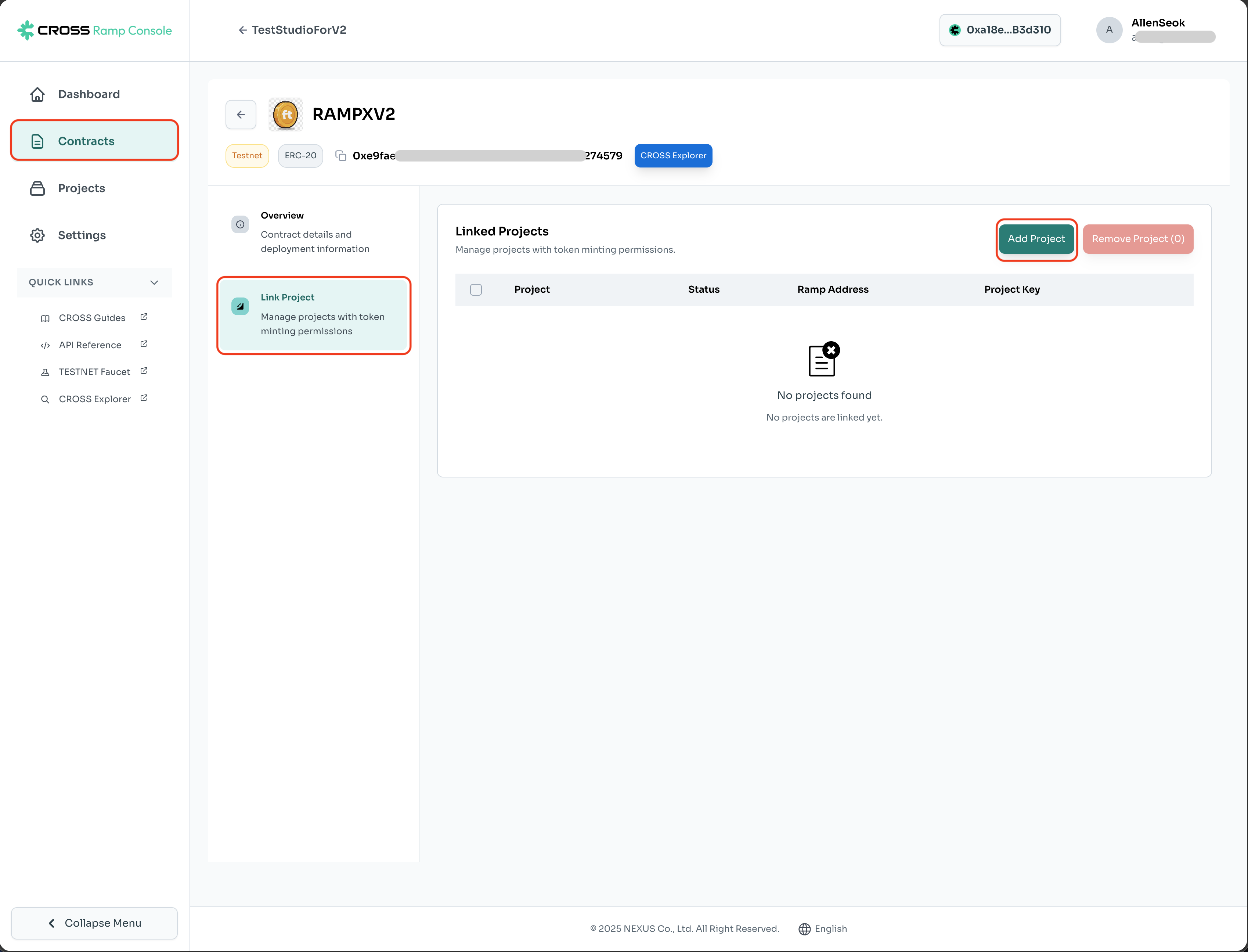
In project settings -> Contracts -> Link Project -> Add Project, linking between contracts (admin wallet signature) is required.
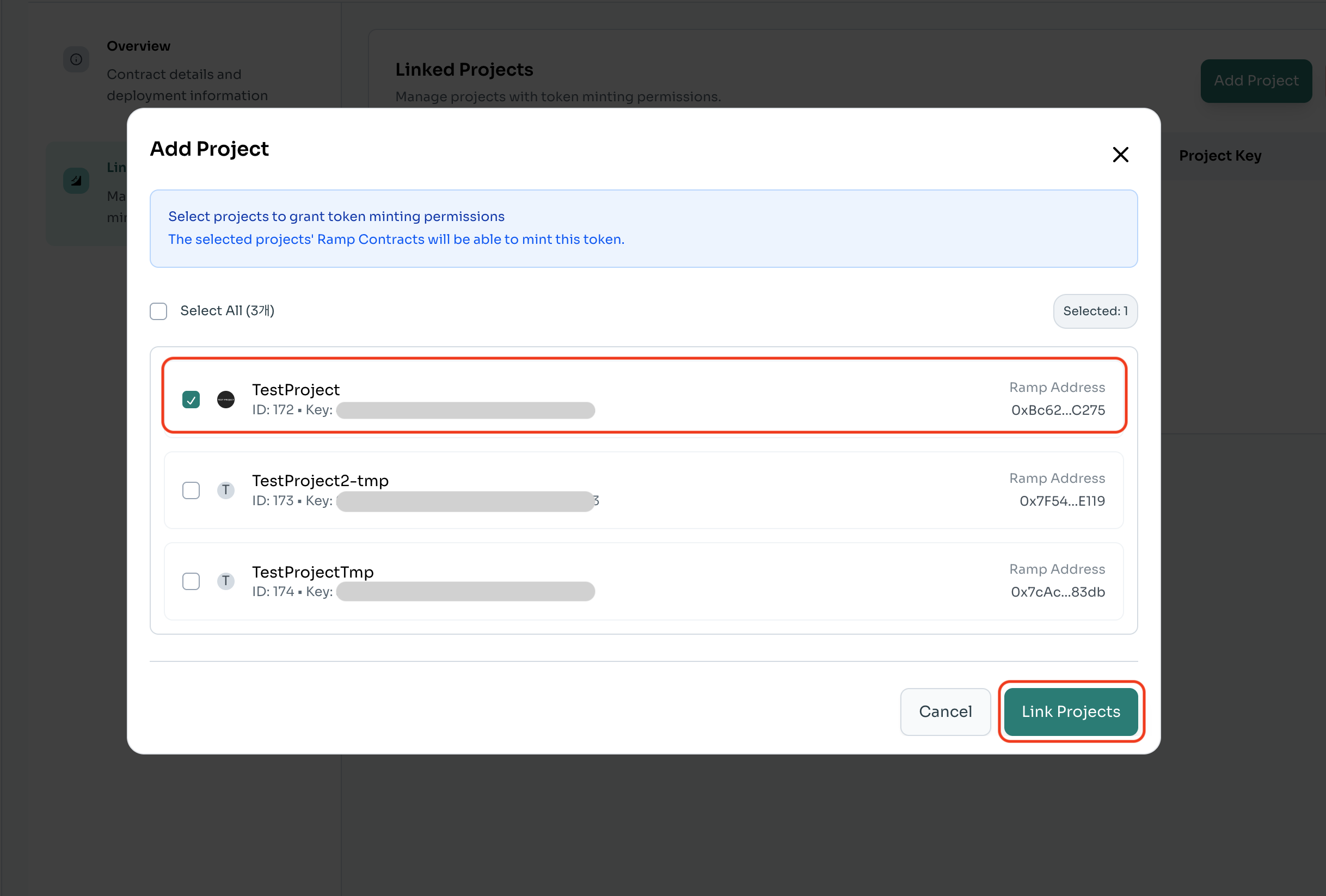
Select RAMP Contract to Link
After selecting the project to link, click the 'Link Projects' button and proceed with the admin wallet signature.
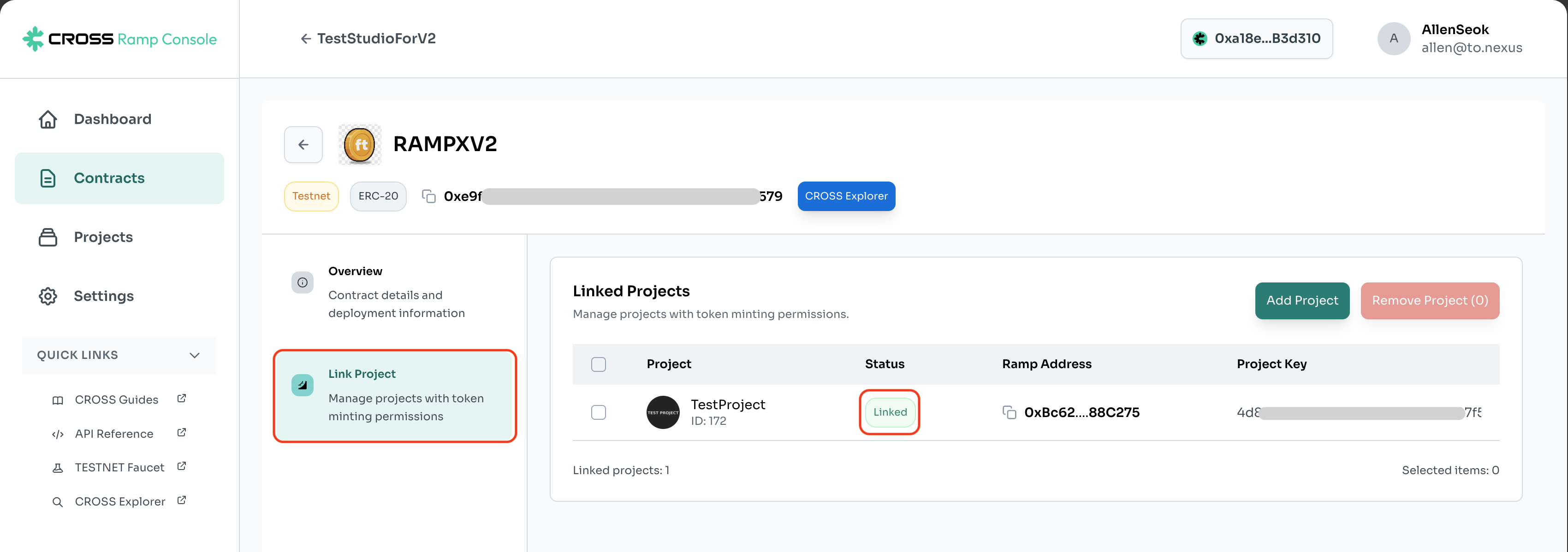
Completion of Token Contract and RAMP Contract Settings
Once the RAMP Contract and token contract are linked, token minting and burning are possible.
Updated 1 day ago